SMS via AWS SNS
The sms plugin sends text messages to your users through Amazon SNS (Simple Notification Service) in your own AWS account. It sends phone number verification codes, codes for sensitive actions such as withdrawals and password resets, and a message when a deposit or withdrawal completes. It is the only SMS plugin that lets you rewrite the message text.
What you need
- The Enterprise plan on HollaEx Cloud.
- An AWS account with SNS set up for SMS, and an access key that is allowed to publish SMS through SNS (see step 1 below). AWS bills you directly for the messages you send.
- No other SMS plugin installed. Only one can run at a time (see Compare the SMS plugins).
Set it up
-
Create an access key in AWS. In the AWS IAM console, go to Access management → Policies and create a policy that allows publishing SMS. In the JSON editor, paste:
{"Version": "2012-10-17","Statement": [{"Effect": "Allow","Action": "sns:Publish","Resource": "*"}]}Then go to Access management → Users, create a user for the exchange's SMS, and attach the policy. Create an access key for that user and copy the Access key ID and Secret access key. Keep them somewhere safe.
-
Install the plugin. Go to Operator Controls → Exchange → Plugins, find sms under Available to install and click Install.
-
Configure it. Click Configure on the plugin, fill in the settings below and save.
Setting What it does regionThe AWS region for SNS, for example us-east-1.accessKeyIdThe AWS access key ID from step 1. secretAccessKeySecret. The AWS secret access key from step 1. send_sms_depositSend an SMS when a deposit completes. Default: on. send_sms_withdrawalSend an SMS when a withdrawal completes. Default: on. send_sms_user_verificationSend codes for actions such as withdrawals and password resets by SMS to users who chose SMS for their codes. Default: on. The form marks the three AWS fields as optional, but the plugin won't start without all of them.
-
Change the message text (optional). You can rewrite every message users see. Leave a field empty to use the default text.
Setting What it does phone_verification_sms_messageSMS with the code for verifying a phone number. Placeholders: {code},{phone}.user_verification_sms_messageSMS with the code for an action such as a withdrawal. Placeholders: {code},{action},{action_type},{phone}.deposit_sms_messageSMS when a deposit is confirmed. Placeholders: {currency},{amount},{type}.withdrawal_sms_messageSMS when a withdrawal is confirmed. Placeholders: {currency},{amount},{type}.phone_added_email_subjectandphone_added_email_bodyThe email sent to the account when a phone number is added. The body can use {phone}, shown with most digits hidden.The ..._error_messageand..._response_messagefieldsThe replies users see on the exchange, such as "SMS has been sent" or "The code provided is invalid". -
Test it. Sign in to your exchange as a test user, add a phone number and confirm it. Then make a small deposit and check that the SMS arrives.
What your users see
- Phone verification. A user adds their phone number on the exchange and gets an SMS with a code. The code is valid for 6 minutes. To add a number they also enter a confirmation code from their email, and their 2FA code if 2FA is on.
- Action codes. Users who chose SMS for their verification codes get them by text, for example when they withdraw or reset their password.
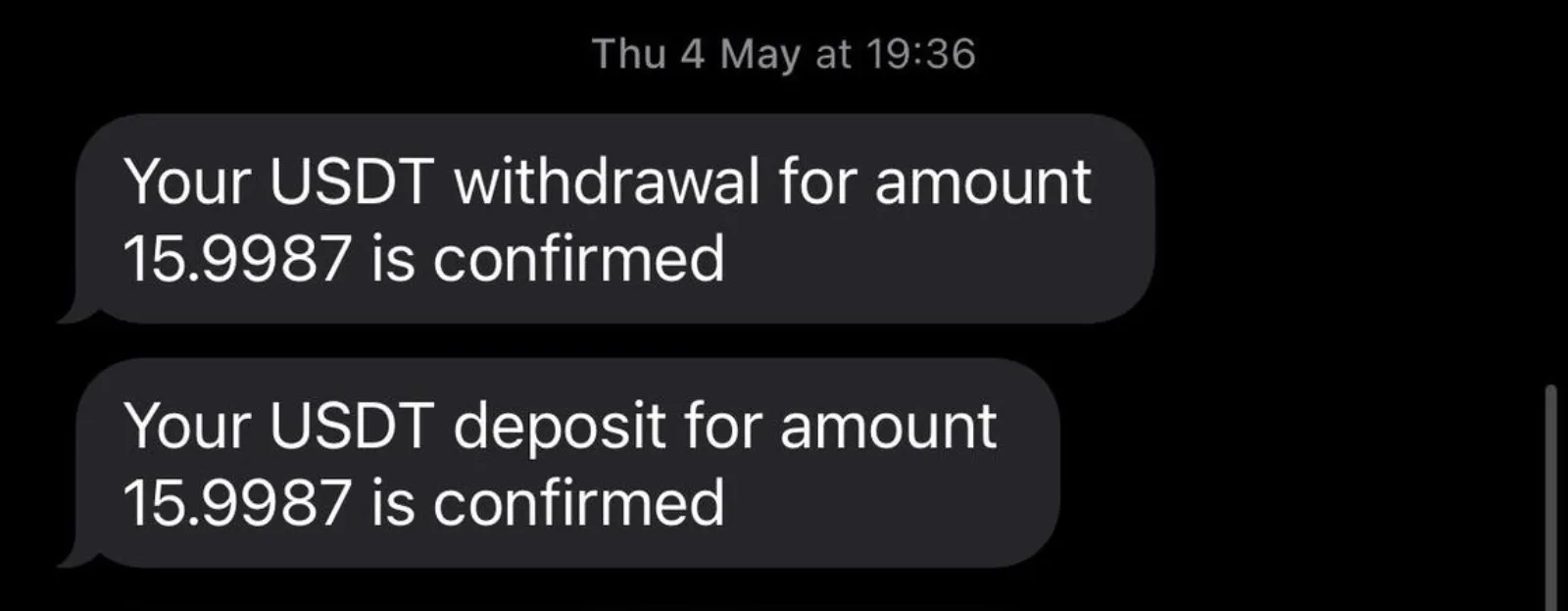
- Deposit and withdrawal messages. With the default text, users get messages like this:
Phone numbers are protected like a login
A verified phone number receives the codes for sensitive actions, such as withdrawals and password resets. Whoever controls the number can approve those actions. So the plugin treats a phone number like a login credential:
- Adding a number needs extra proof. To add a phone number, the user enters the code from the SMS, a confirmation code sent to their account email and, if they have 2FA turned on, their 2FA code. Afterwards the account's email address, if it has one, gets a message that a number was added, with most digits hidden.
- Users can't replace their number. Once a number is on an account, the user can verify that same number again but can't swap it for a different one. No SMS goes to the new number. They see "Your phone number can't be changed here. Please contact support."
- One number, one account. A number already verified on another account is refused. The user sees "This phone number is already in use on another account."
- Deposit and withdrawal SMS go only to verified numbers. A number that was typed in but never verified gets no notifications.
What this means for you: a user who lost their phone or changed their number has to come to your support. Confirm who they are before you change anything, then edit the number from their profile in Operator Controls (Edit User Data). See Users & Review Queue.
How it works
- The plugin checks for another SMS plugin when it starts. If one is already installed, it doesn't start and emails your exchange's audit address that the second SMS plugin was blocked.
- If a required AWS setting is missing, the plugin doesn't start and nothing is sent.
- A user who requests too many codes, or enters too many wrong ones, is blocked from SMS verification for 24 hours. They see "Too many requests. Your account is blocked for 24 hours".
Compare the SMS plugins
All four SMS plugins send the same three kinds of message, and each one can be turned off in the settings:
- Deposit SMS (
send_sms_deposit): sent when a deposit completes. - Withdrawal SMS (
send_sms_withdrawal): sent when a withdrawal completes. - Verification SMS (
send_sms_user_verification): codes for sensitive actions, such as withdrawals and password resets, for users who chose SMS for their codes. Phone number verification codes are always sent.
They differ in the provider and in a few details:
| Plugin | Provider account you need | Edit the message text | Phone number treated as a login credential |
|---|---|---|---|
SMS via AWS SNS (sms) | AWS, with SNS | Yes | Yes |
Telnyx (telnyx) | Telnyx, with a messaging-enabled number | No | Yes |
Messente (messente-sms) | Messente, with API access | No | Yes |
Sinch (sinch) | Sinch, with an SMS service plan | No | No |
You can install only one SMS plugin at a time. To switch, remove the one you have, then install the new one.
Troubleshooting
- No SMS arrives. Check that all three AWS settings are filled in and that the access key is allowed to publish through SNS. Check that no other SMS plugin is installed. Then check the plugin logs.
- Deposit or withdrawal SMS don't arrive, but verification codes do. The user's phone number isn't verified, or the setting for that message is off.
- "Adding a phone number is not supported on this exchange." Your exchange can't issue the email confirmation code that adding a number needs, so no number is saved. Open a ticket.
- "Confirm adding this number with the code sent to your email." or "Enter your 2FA code to add this phone number." The user left out the email confirmation code or the 2FA code.
Need help? Open a ticket from your HollaEx dashboard.